
Overall Flow
1. Prerequisites (Node.js, PowerShell setup)
2. Installing OpenClaw
3. PATH Configuration (Critical: must use GUI or PowerShell)
4. Recovering a Lost PATH (in case of a setx accident)
5. Running the Onboarding Wizard
6. Ollama Integration (Local/Cloud Models)
7. ChatGPT Subscription Integration (Codex CLI Authentication, Recommended)
8. Messenger Channel Integration - Telegram
9. Messenger Channel Integration - Discord
10. Starting and Verifying the Gateway
11. Workspace Customization
Documentation as of March 14, 2026
OpenClaw (formerly ClaudeBot/MoltBot) is an open-source AI Agent that runs on your local machine. When you send commands through messengers such as Telegram, WhatsApp, or Discord, it carries out tasks on your behalf, including file manipulation, sending emails, executing code, and managing schedules.
Before We Begin
For most paths, we will use the recommended installation option, which installs everything immediately during setup.
<UserName> refers to the username (path) where the application is typically installed.
1. Prerequisites
Step 1: Install WSL2 and Ubuntu 24.04
Open PowerShell as Administrator, then enter the following command.
wsl --update
wsl --install -d Ubuntu-24.04
After installation is complete, reboot the system. Once the Ubuntu terminal opens after rebooting, set your username and password.
If it does not open automatically:
wsl -d Ubuntu-24.04
Troubleshooting: WSL_E_DISTRO_NOT_FOUND Error
This error can occur during the initial activation of the WSL feature.
wsl --update
wsl --list --online
wsl --install -d Ubuntu-24.04
Step 2: Enable systemd
Run the following in the Ubuntu terminal.
sudo tee /etc/wsl.conf >/dev/null <<'EOF'
[boot]
systemd=true
EOF
Shut down WSL from PowerShell, then restart it.
wsl --shutdown
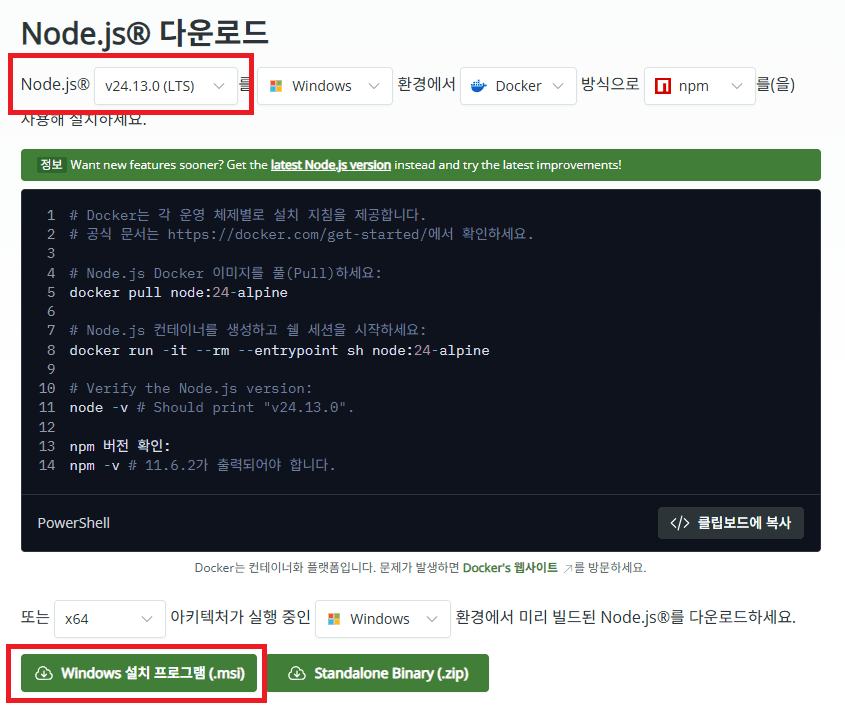
1.1 Install Node.js 22 or Later
OpenClaw requires Node.js 22 or later.
If you do not have it yet, download the LTS version from the official site.
Download: https://nodejs.org
Select the "Recommended For Most Users" version
Proceed with the defaults in the installation wizard
Verify the installation:
node --version
# v22.x.x or higher is valid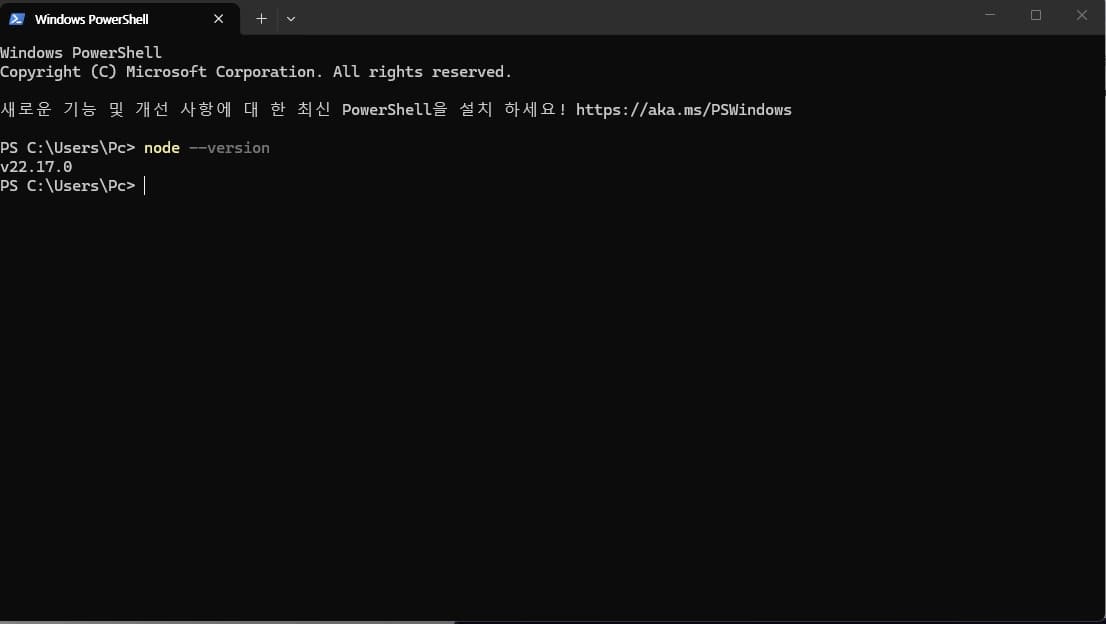
PS C:\Users\Pc> node --version v22.17.0 PS C:\Users\Pc>
1.2 Installing Git (recommended)
Some npm packages require Git when downloading source from GitHub.
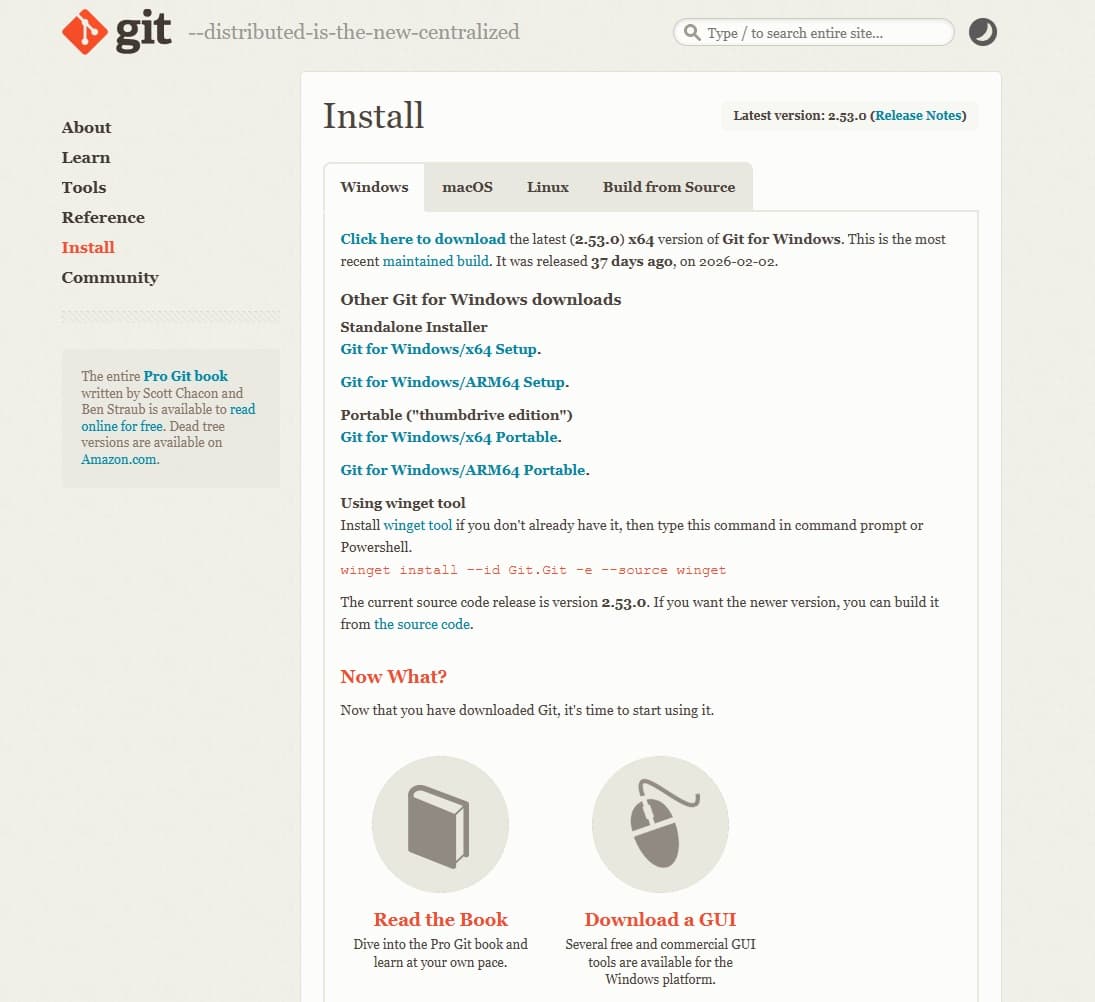
Download: https://git-scm.com
Proceed with the defaults in the installation wizard
1.3 CMD vs. PowerShell
When opening a terminal on Windows, CMD (Command Prompt) and PowerShell are different environments. The OpenClaw installation script is PowerShell-only, so you must run it in PowerShell.
How to tell them apart:
CMD prompt:
C:\Users\<UserName>>PowerShell prompt:
PS C:\Users\<UserName>>
To switch from CMD to PowerShell, type powershell.
1.4 Checking the PowerShell Execution Policy
Windows' default execution policy may block script execution. Open PowerShell in Administrator mode and change the execution policy:
Set-ExecutionPolicy -ExecutionPolicy RemoteSigned -Scope CurrentUser
When a confirmation prompt appears, type Y.
2. Installing OpenClaw
Open PowerShell in Administrator mode and run the installation script:
iwr -useb https://openclaw.ai/install.ps1 | iexWhat this script does:
- Check the Node.js version
- Globally install the OpenClaw CLI via npm
- Create the initial configuration directory (
~/.openclaw/)- Run the onboarding wizard
3. Configuring PATH (Critical)
Even after installing OpenClaw, the openclaw command is often not recognized. This is because the npm global binary path is not registered in the user's PATH environment variable.
3.1 Diagnosing the Problem
C:\Users\<UserName>>openclaw --version
'openclaw' is not recognized as an internal or external command, operable program or batch file.
3.2 Verifying the Binary Exists
First, confirm that the installation itself succeeded:
npm prefix -g
# Example output: C:\Users\<UserName>\AppData\Roaming\npm

dir "C:\Users\<UserName>\AppData\Roaming\npm\openclaw*"
# If openclaw, openclaw.cmd, and openclaw.ps1 exist, the installation is complete
Verify it works by specifying the path directly:
"C:\Users\<UserName>\AppData\Roaming\npm\openclaw.cmd" --version
# If the version is printed, the binary is working correctly
3.3 Methods for Adding to PATH (2 Options)
Method A: GUI (sysdm.cpl) - Safest
Press
Win + R, typesysdm.cpl, and press EnterClick the Advanced tab
Click the Environment Variables button
In the User variables section at the top, select
Pathand click EditClick New
Enter
C:\Users\<UserName>\AppData\Roaming\npmOK -> OK -> OK
You must fully close and reopen any CMD/PowerShell windows for the changes to take effect
Method B: PowerShell - Safely append to the existing value
$current = [Environment]::GetEnvironmentVariable("PATH", "User")
[Environment]::SetEnvironmentVariable("PATH", "$current;C:\Users\<UserName>\AppData\Roaming\npm", "User")
Warning: Never use
setx PATHin CMD.The
setx PATH "%PATH%;new-path"command merges the user PATH and the system PATH, then overwrites the user PATH with the result, and the content gets truncated due to the 1024-character limit. This causes previously registered paths for Ollama, Go, Python, and others to be lost.A real-world example:
CodeC:\Windows\System32>setx PATH "%PATH%;C:\Users\<UserName>\AppData\Roaming\npm" WARNING: The data being saved is truncated to 1024 characters. SUCCESS: The specified value has been saved.After this, the
ollamacommand will no longer be recognized. See Section 4 for detailed recovery steps.
3.4 Verification
In a new terminal:
openclaw --version
ollama --version
If both work correctly, the PATH configuration is complete.
4. Recovering from PATH Loss (when a setx accident occurs)
This section covers how to recover if you accidentally ran setx PATH and wiped out existing paths.
4.1 The Mechanism by Which setx Destroys PATH
There are two types of PATH environment variables in Windows:
Final PATH = System PATH + User PATHWhen you reference %PATH% in CMD, you get this combined value. When you run setx PATH "%PATH%;새경로":
It attempts to write the entire combined PATH (thousands of characters) into the user PATH
The contents of the system PATH get duplicated and copied into the user PATH
The trailing portion is truncated due to the 1,024-character limit
Paths at the end, such as Ollama and Rancher Desktop, are lost
4.2 Diagnosing the Current State
In PowerShell, check the user PATH and system PATH separately:
Write-Host "=== USER PATH ==="
[Environment]::GetEnvironmentVariable("PATH", "User")
Write-Host ""
Write-Host "=== SYSTEM PATH ==="
[Environment]::GetEnvironmentVariable("PATH", "Machine")
setx only overwrites the user PATH. The system PATH is likely intact. The probable state is that the entire system PATH has been duplicated into the user PATH, and the trailing portion (including Ollama, etc.) has been lost due to the 1,024-character truncation.
4.3 Finding the Lost Paths
Find the actual locations of programs that are not recognized, such as Ollama:
where /R "C:\Users\<UserName>" ollama.exe
# Example output: C:\Users\<UserName>\AppData\Local\Programs\Ollama\ollama.exe
4.4 Resetting the User PATH
Since the system PATH already includes Git, Python, Go, Node, Windows default paths, and so on, the user PATH only needs to contain the paths for programs the user installed directly.
In PowerShell:
[Environment]::SetEnvironmentVariable("PATH", "C:\Users\<UserName>\AppData\Local\Programs\Ollama;C:\Users\<UserName>\AppData\Roaming\npm", "User")
Add any other user program paths as needed, separated by semicolons.
4.5 Verification
Fully close and reopen CMD/PowerShell, then run:
ollama --version
openclaw --version
If both are recognized, the recovery is complete.
4.6 Lessons Learned
Method | Safety | Notes |
|---|---|---|
| Dangerous | 1,024-character truncation; mixes system and user PATH |
| Safe | Edits user/system PATH separately |
| Safe | Can manipulate user PATH precisely |
- Method
setx PATH(CMD)- Safety
Dangerous
- Notes
1,024-character truncation; mixes system and user PATH
- Method
sysdm.cpl(GUI)- Safety
Safe
- Notes
Edits user/system PATH separately
- Method
[Environment]::SetEnvironmentVariable()(PowerShell)- Safety
Safe
- Notes
Can manipulate user PATH precisely
Always add to PATH using the GUI or PowerShell. Do not use setx PATH.
5. Onboarding Wizard
The installation script starts onboarding automatically. If you skipped it, run it manually:
openclaw onboard --install-daemonItems configured in the wizard:
Step | Item | Description |
|---|---|---|
1 | Model Provider | Select from Ollama, Anthropic, OpenAI, Google, and more |
2 | API Key or Authentication | Enter the authentication credentials for the selected provider |
3 | Messenger Channel | Select the channel to integrate, such as Telegram, WhatsApp, or Discord |
4 | Skill | Choose whether to install bundled skills (can be added later; skippable) |
5 | Hook / Webhook | Skip if not needed |
- Step
1
- Item
Model Provider
- Description
Select from Ollama, Anthropic, OpenAI, Google, and more
- Step
2
- Item
API Key or Authentication
- Description
Enter the authentication credentials for the selected provider
- Step
3
- Item
Messenger Channel
- Description
Select the channel to integrate, such as Telegram, WhatsApp, or Discord
- Step
4
- Item
Skill
- Description
Choose whether to install bundled skills (can be added later; skippable)
- Step
5
- Item
Hook / Webhook
- Description
Skip if not needed
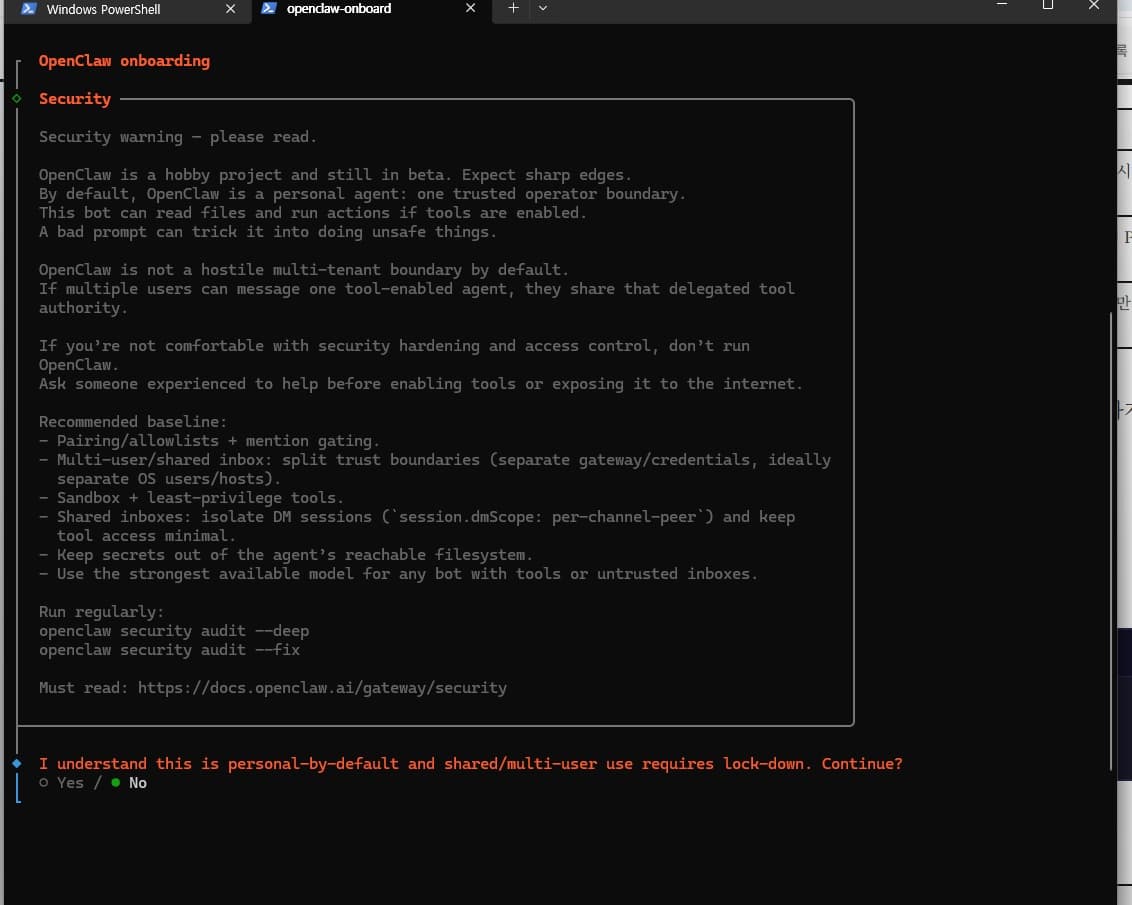
Press Yes to proceed.
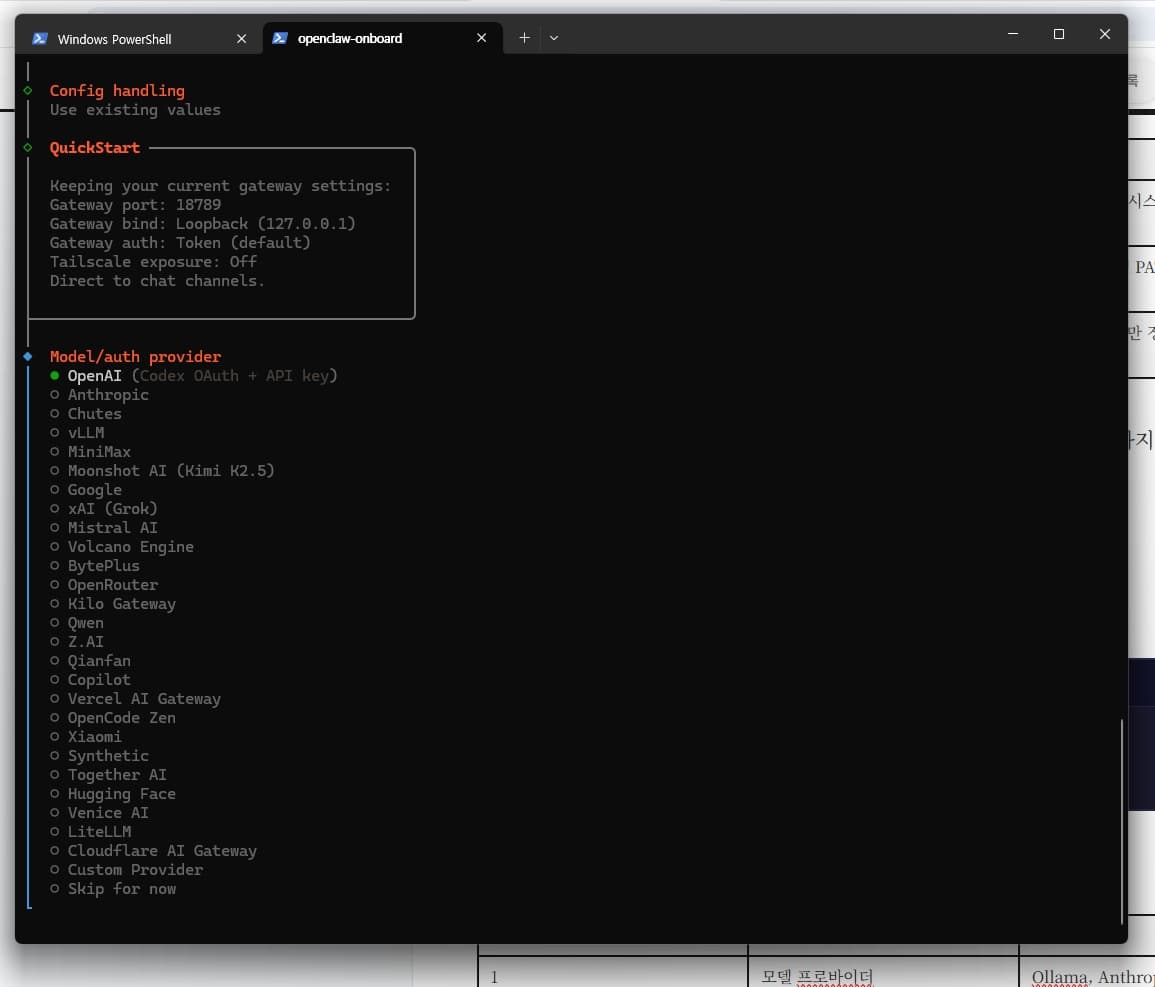
After this, a list of model names will appear, which will vary depending on which AI you are using.
Since API costs tend to be higher than expected, the personal recommendation is to integrate with an OpenAI subscription plan or use a local LLM instead.

What is Ollama?
Ollama is an open-source platform that makes it easy to run and use large language models (LLMs) on your local computer. It lets you run models like DeepSeek or LLaMA with simple commands and use them like an API, without any complex configuration.
6. Ollama Integration
Starting from Ollama version 0.17, you can integrate it with OpenClaw. This section assumes that Ollama is already installed on Windows.
6.1 The ollama launch Command
Since the OpenClaw installation and PATH configuration are complete, it should now work correctly:
ollama launch openclaw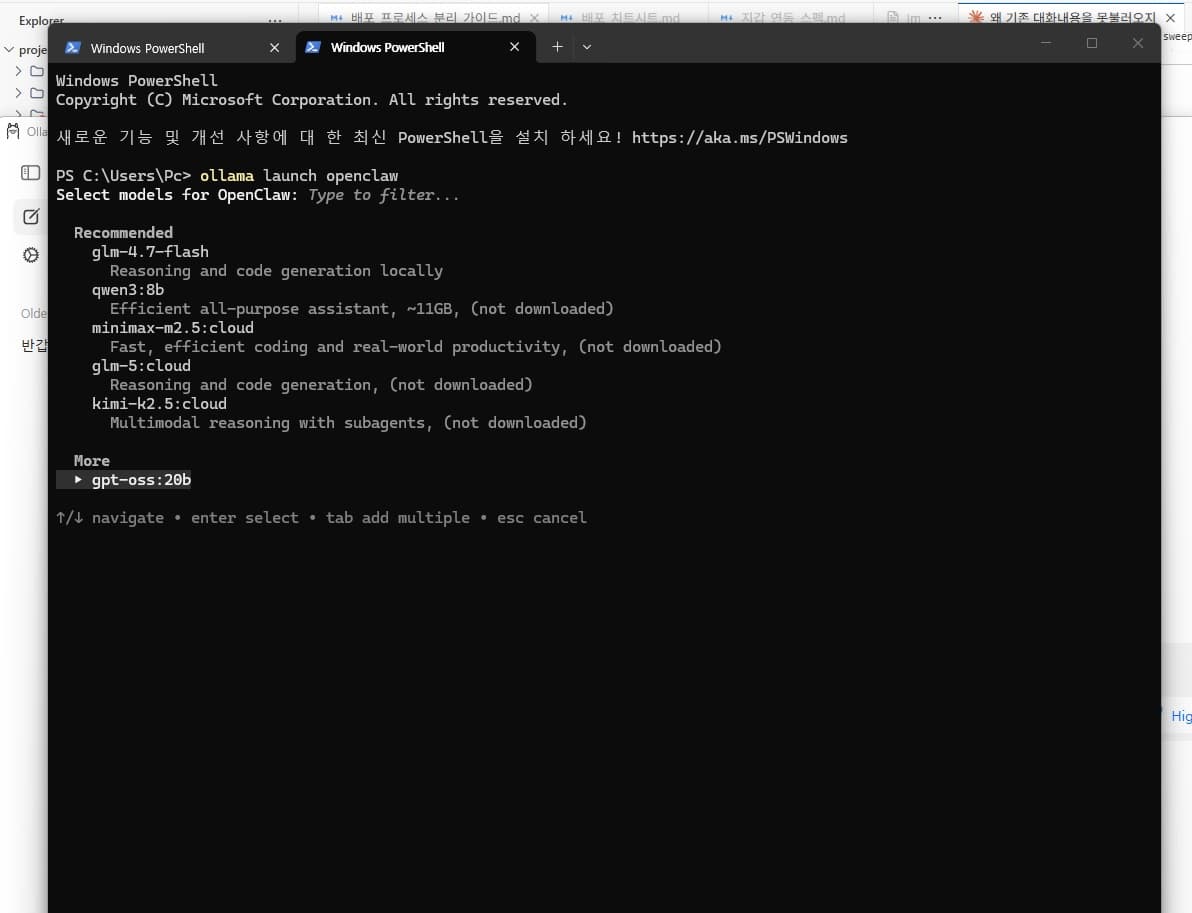
Here you select a model; for this guide, we will choose the gpt-oss 20B model.
Example output on successful startup:
This will modify your OpenClaw configuration:
  C:\Users\<Username>\.openclaw\openclaw.json
Backups will be saved to C:\Users\<Username>\AppData\Local\Temp\ollama-backups/
Added gpt-oss:20b to OpenClaw
Launching OpenClaw with gpt-oss:20b...
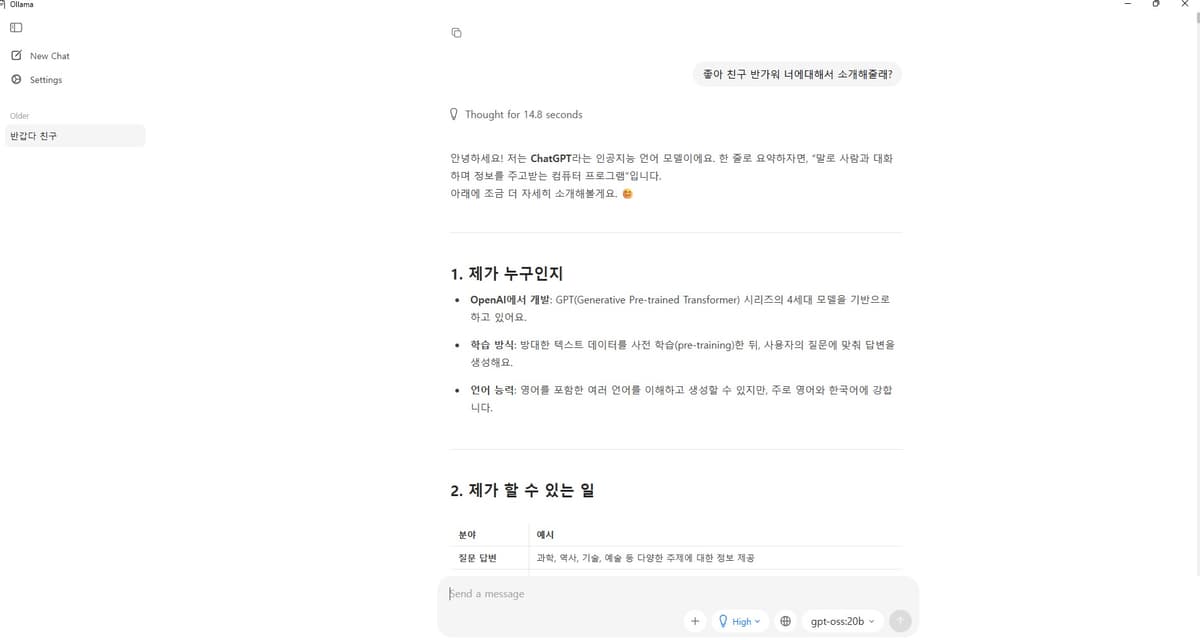
Tasks handled by Ollama:
Back up existing configuration
Display the model selection screen
Automatically register the selected model in the OpenClaw configuration
Start the gateway
Launch the TUI (Text User Interface) console
6.2 Model Selection Criteria
OpenClaw recommends a minimum context window of 64K tokens.
Ollama Cloud Models (recommended, free tier available):
Model
Features
gpt-oss:20b
General-purpose, default choice
Kimi-K2.5
Cost-efficient
- Model
gpt-oss:20b
- Features
General-purpose, default choice
- Model
Kimi-K2.5
- Features
Cost-efficient
Local Models (choose based on VRAM):
Model
VRAM
Use Case
qwen3:8b
8GB
Lightweight Q&A
qwen2.5-coder:32b
24GB
Coding-specialized, tool calling support
deepseek-r1:32b
24GB
Reasoning-specialized
glm-4.7-flash
25GB
Reasoning + code generation
- Model
qwen3:8b
- VRAM
8GB
- Use Case
Lightweight Q&A
- Model
qwen2.5-coder:32b
- VRAM
24GB
- Use Case
Coding-specialized, tool calling support
- Model
deepseek-r1:32b
- VRAM
24GB
- Use Case
Reasoning-specialized
- Model
glm-4.7-flash
- VRAM
25GB
- Use Case
Reasoning + code generation
6.3 If you want to change settings only without starting the gateway
Codeollama launch openclaw --config6.4 Manually changing the model
To change the model while the gateway is already running:
PowerShellopenclaw models set ollama/qwen2.5-coder:32bOr edit the configuration file directly:
PowerShellnotepad %USERPROFILE%\.openclaw\openclaw.jsonConfiguration example (the
modelssection inopenclaw.json):JSON{ "models": { "providers": { "ollama": { "baseUrl": "http://localhost:11434/v1", "apiKey": "ollama-local", "api": "openai-completions", "models": [ { "id": "gpt-oss:20b", "name": "gpt-oss:20b", "reasoning": false, "input": ["text"], "cost": { "input": 0, "output": 0, "cacheRead": 0, "cacheWrite": 0 }, "contextWindow": 131072, "maxTokens": 8192 } ] } } }, "agents": { "defaults": { "model": { "primary": "ollama/gpt-oss:20b" } } } }Restart the gateway after modifying the configuration file:
PowerShellopenclaw gateway restart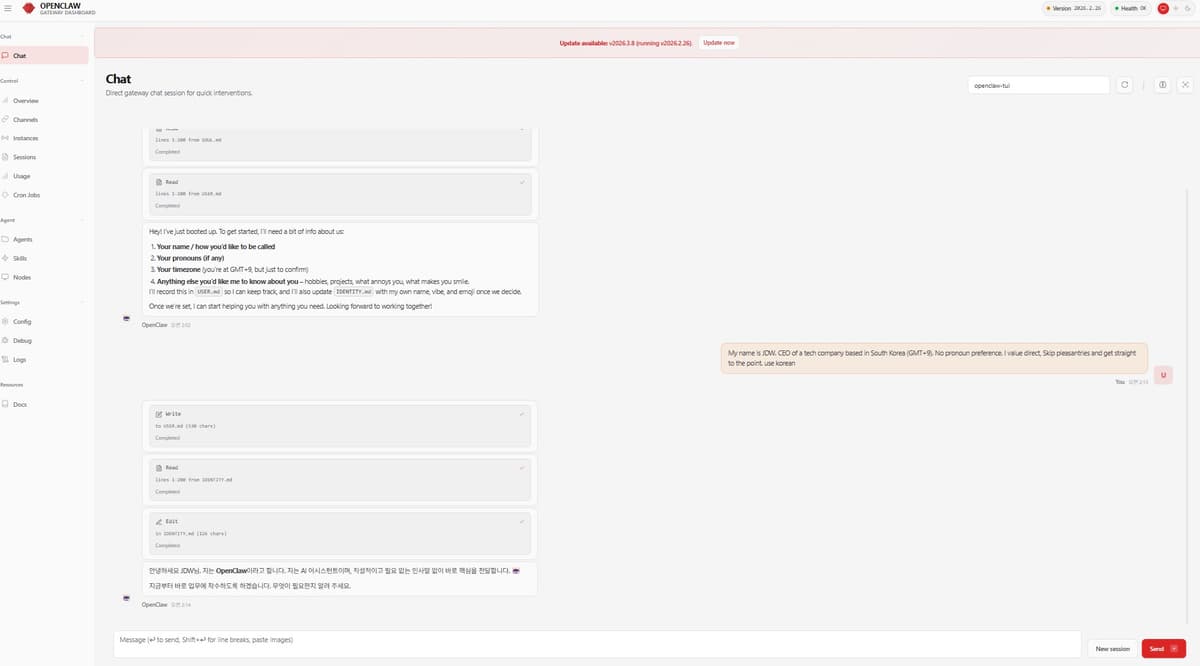
Afterward, verify the settings through the web dashboard.
The dashboard is accessible by default at http://127.0.0.1:18789/.
7. GPT Integration via CLI
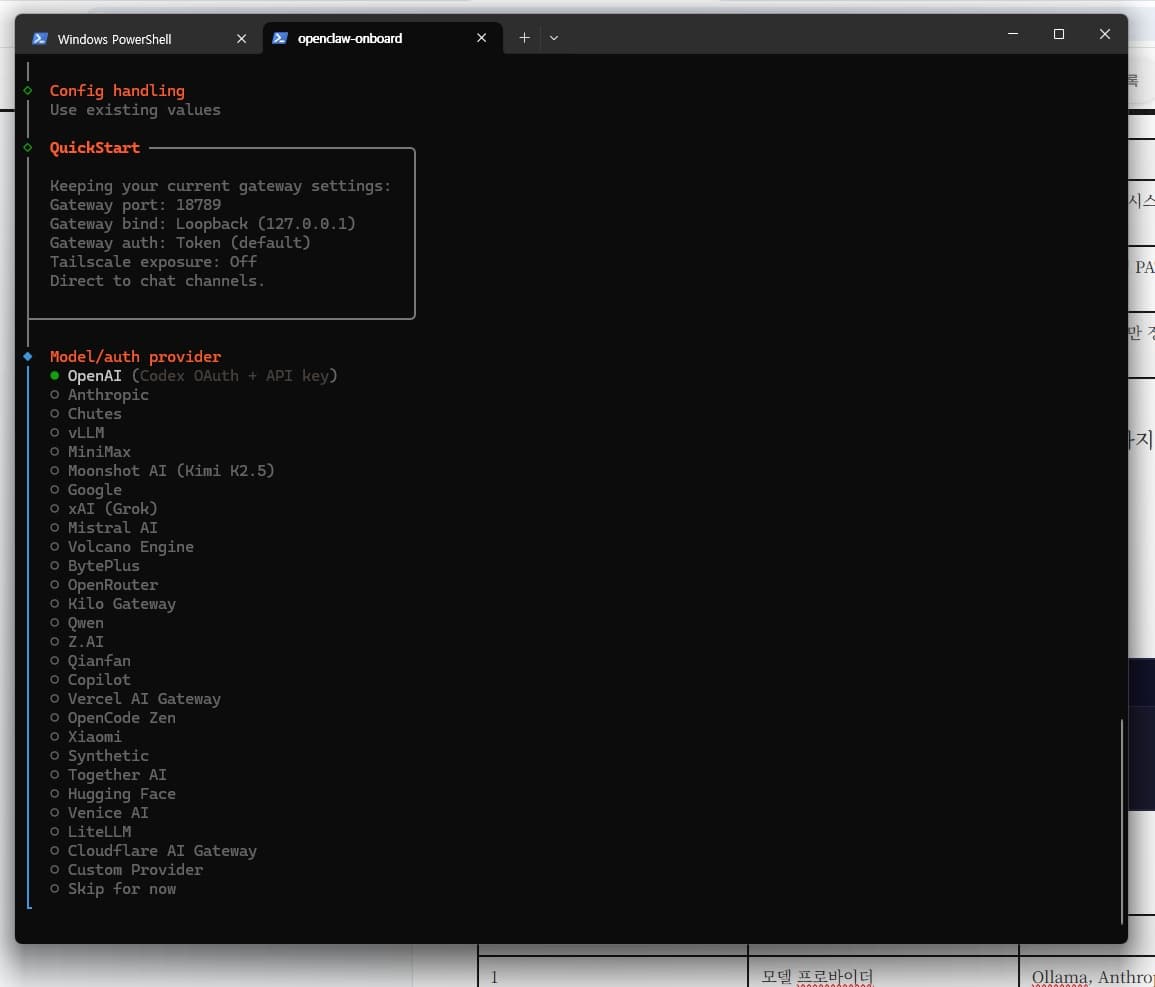
Clicking OPENAI and completing OAuth lets you link your GPT subscription, or you can issue an API key from OpenAI and access it through the API.
8. Messenger Channel Integration (Telegram)
Telegram has the lowest setup difficulty.
8.1 Creating a Telegram Bot
Search for
@BotFatherin the Telegram app and start a conversation.Enter the
/newbotcommand.Enter a bot name (e.g.,
MyOpenClaw).Enter a bot username (e.g.,
my_openclaw_bot; it must end with_bot).Copy the Bot Token issued by BotFather (format:
123456789:ABCdefGHI...).
8.2 Registering the Telegram Token in OpenClaw
If you selected Telegram in the onboarding wizard, a token input screen will appear.
openclaw onboard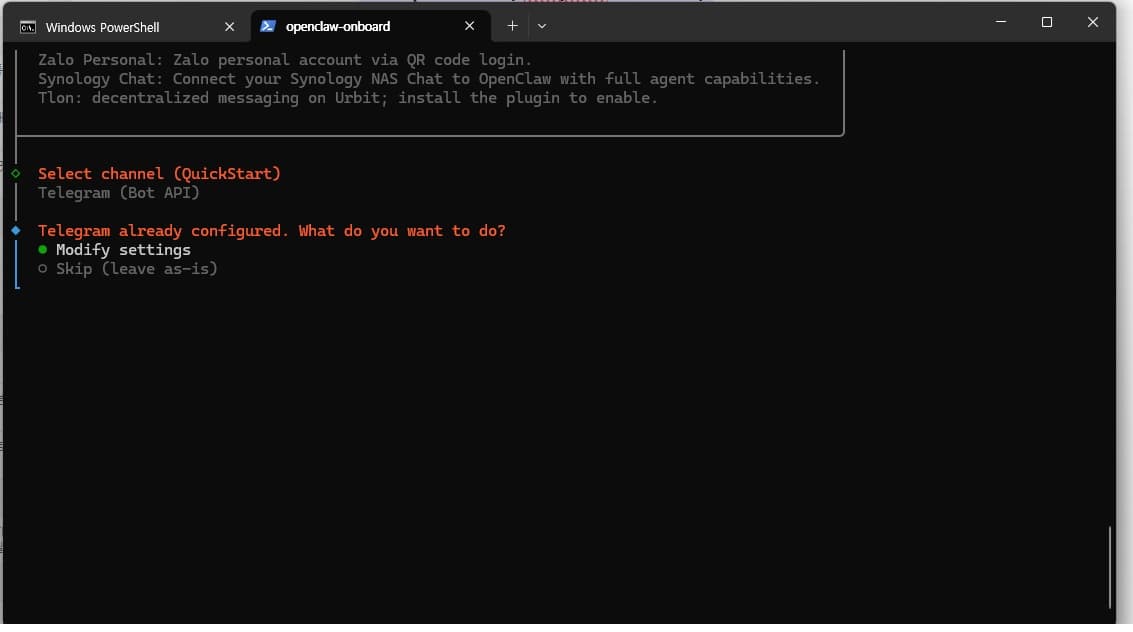
After registering the model and selecting the Telegram channel,
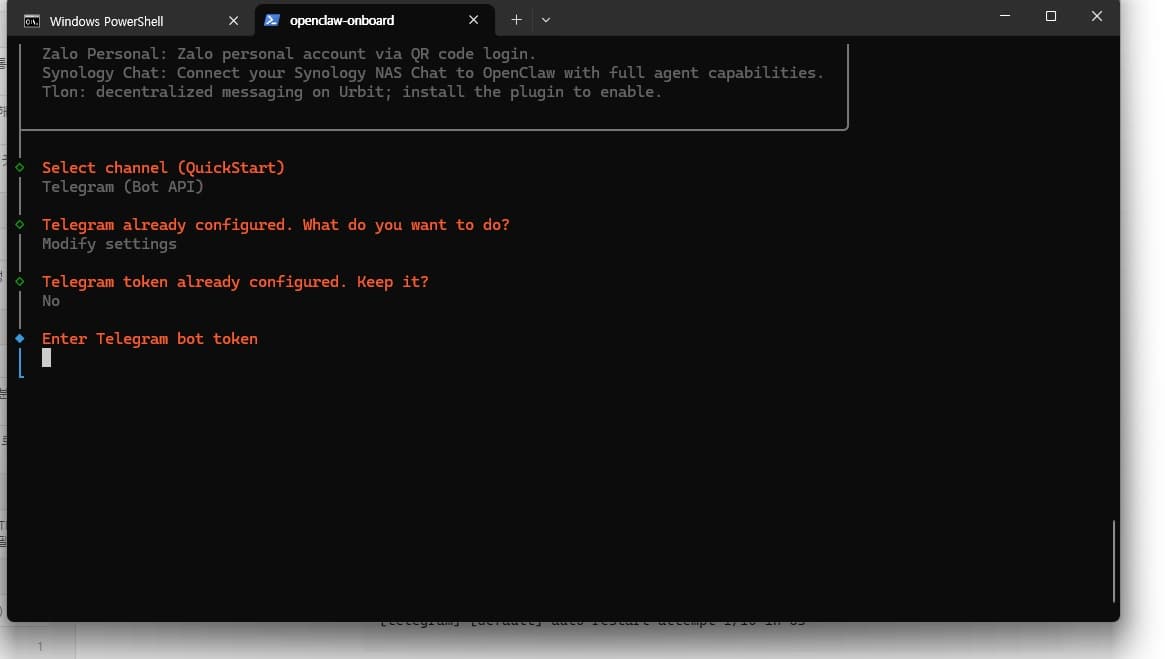
enter the token in the token input field.
To register manually:
openclaw channels add --channel telegram --token <YOUR_BOT_TOKEN>Note: You can also register via
openclaw configure --section channels(the interactive wizard), but when registering directly through the CLI, you must use thechannels addcommand.openclaw config set channels.telegram.token ...does not work (the key name is different).
After registering the token, you must restart the gateway for the changes to take effect:
openclaw gateway restart8.2.1 401 Unauthorized Error
If the following error repeats in the gateway log:
[telegram] telegram deleteWebhook failed: Call to 'deleteWebhook' failed! (401: Unauthorized)
[telegram] [default] channel exited: Call to 'deleteWebhook' failed! (401: Unauthorized)
[telegram] [default] auto-restart attempt 1/10 in 5s
Cause: The Telegram bot token is incorrect or has expired.
Resolution:
In Telegram, go to
@BotFather->/mybots-> select your bot ->API Tokento reconfirm the token.If the token is incorrect, reissue it with
/revoke.Register again with the new token:
openclaw channels add --channel telegram --token <NEW_TOKEN>
openclaw gateway restart
If the token issue persists, try creating a new bot.
8.3 Pairing
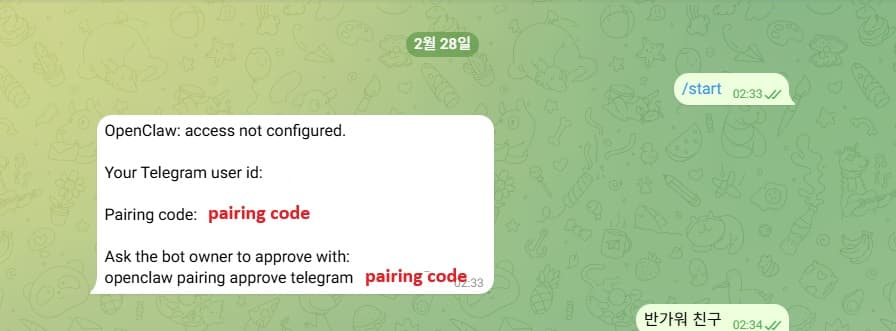
Find the bot you just created in Telegram and send
/start.The bot sends a message containing the pairing code.
Approve the pairing in the terminal:
openclaw pairing approve telegram <CODE>
8.4 Verification
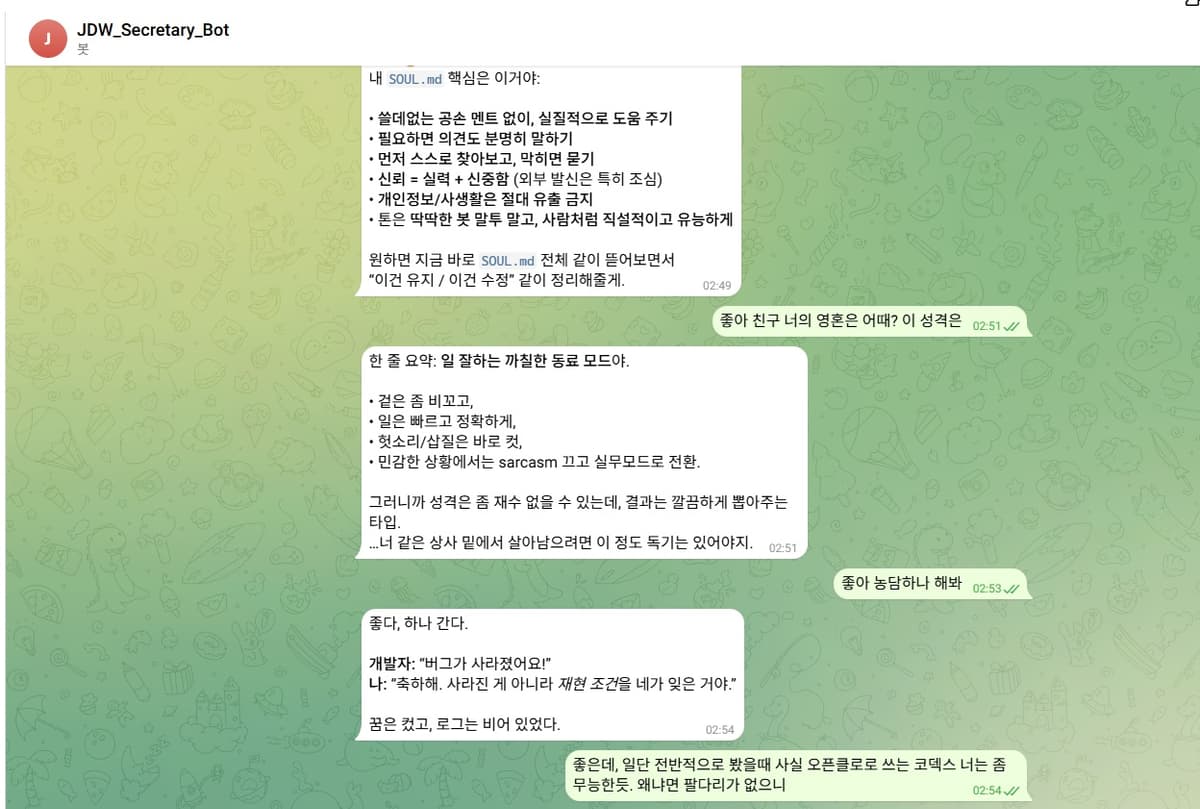
Send any message to the bot in Telegram.
Once you receive a response, the integration is complete.
9. Messenger Channel Integration (Discord)
You can integrate Discord in addition to, or instead of, Telegram.
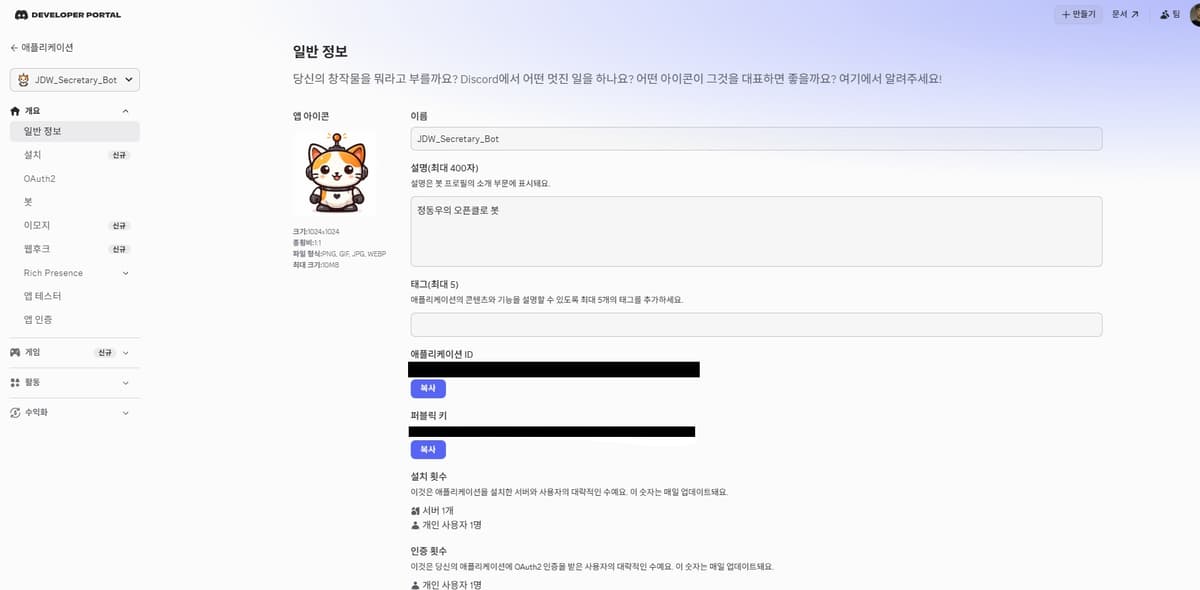
9.1 Creating a Discord Bot
Click New Application and enter a name (e.g.,
OpenClawBot).Click the Bot tab in the left menu.
Click Reset Token to copy the bot token.
9.2 Configuring Privileged Gateway Intents (Required)
In the Bot tab, scroll down to find the Privileged Gateway Intents section. Enable all three of the following:
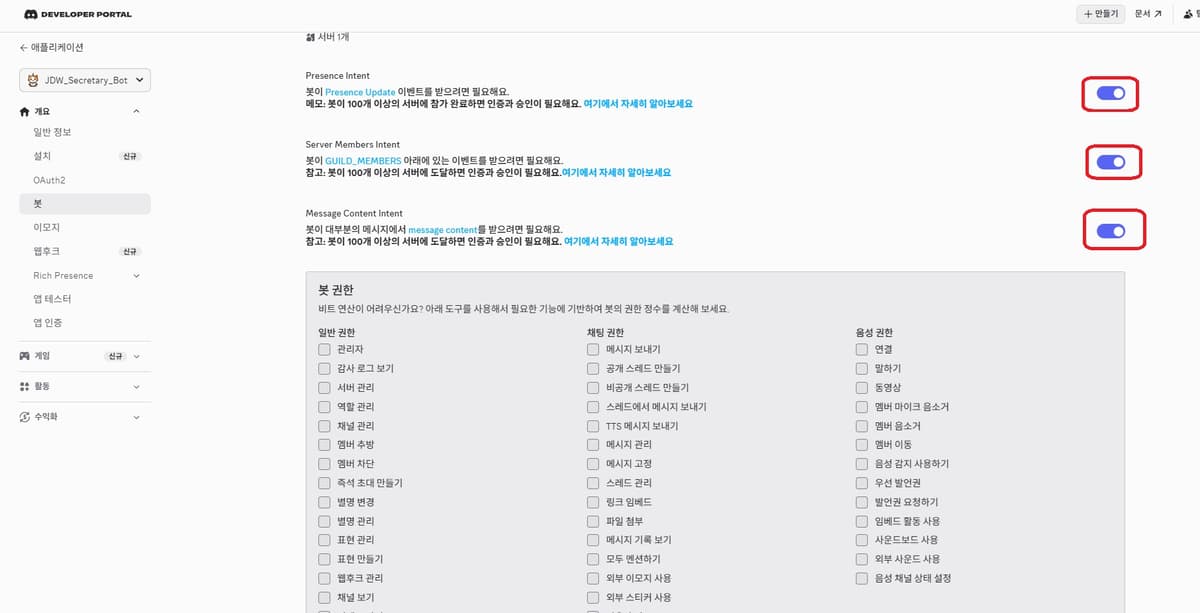
Presence Intent - Detects online status
Server Members Intent - Reads server member list
Message Content Intent - Reads message content (required)
After enabling them, be sure to click Save Changes.
If you skip this step, the bot will not work. The following error will repeat in the gateway logs:
PowerShell[discord] discord: gateway closed with code 4014 (missing privileged gateway intents) [discord] [default] auto-restart attempt 1/10 in 5sIf you see this error, check that the Intent toggles are enabled in the Discord Developer Portal. Once you enable the toggles and save, the gateway will connect successfully on its next automatic retry.
9.3 Inviting the Bot to a Server

Click OAuth2 in the left menu.
Scroll down to find the OAuth2 URL Generator section.
Check
botin the Scopes list (5th item from the top in the left column).Checking
botwill make a Bot Permissions panel appear below.Check the following under Bot Permissions:
Send Messages
Read Message History
Read Messages/View Channels
Embed Links
Attach Files
The Generated URL will appear at the bottom of the page.
Copy the URL and paste it into your browser.
Select the server you want to invite the bot to and confirm.
9.4 Registering the Discord Token in OpenClaw
openclaw channels add --channel discord --token "YOUR_BOT_TOKEN"
Note: In PowerShell, the token must be wrapped in quotes. Special characters (such as
.) included in a Discord bot token may be interpreted as shell operators. In CMD, it works without quotes, but wrapping it in quotes as a habit is recommended.
After registering, restart the gateway:
openclaw gateway restart
9.5 Pairing
Send any message to the bot via DM in Discord, and a pairing code will appear.
openclaw pairing approve discord <CODE>
9.6 Verification
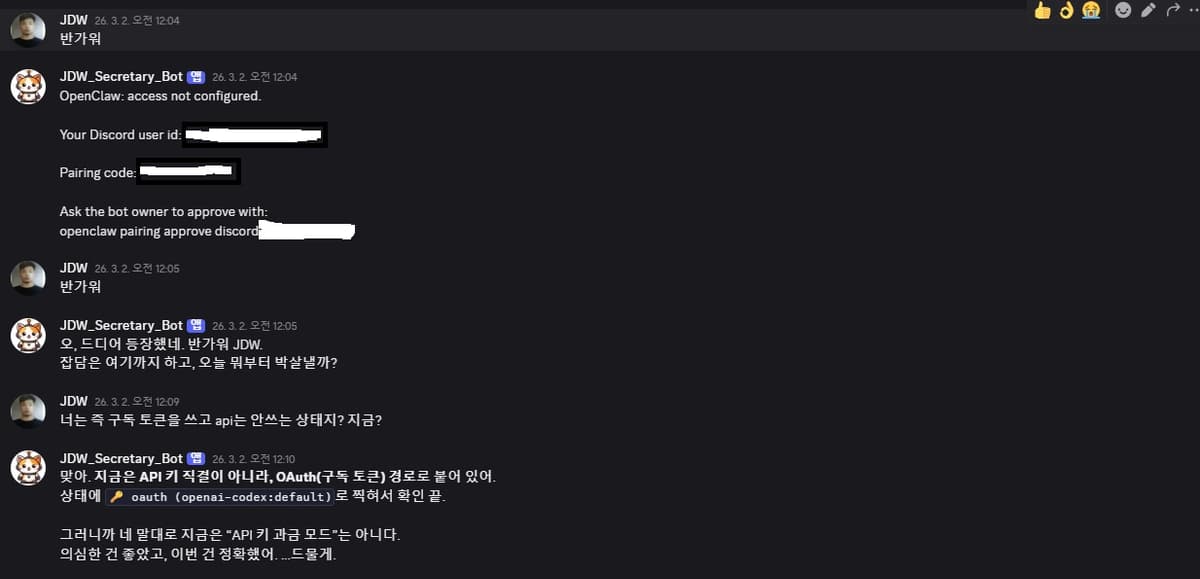
Send a message to the bot via DM in Discord. If you receive a response, the integration is complete.
Note: Test with a DM first, not a server channel. To use the bot in a server channel, either call it with a mention (
@OpenClawBot) or adjust the mention gating setting in the OpenClaw configuration.
10. Starting and Verifying the Gateway
# Start gateway
openclaw gateway start
# Check status
openclaw gateway status
# Open web dashboard
openclaw dashboard
The web dashboard is accessible by default at http://127.0.0.1:18789/, and it provides a convenient GUI overview of the status at a glance.
To change the port:
openclaw gateway --port 18790
11. Workspace Customization
After installation, the following structure is created in the %USERPROFILE%\.openclaw\ directory:
%USERPROFILE%\.openclaw\
openclaw.json # Main configuration (models, channels, gateway, etc.)
workspace\
AGENTS.md # Agent behavior guidelines (bootstrapper)
SOUL.md # Persona (personality, tone, attitude)
USER.md # User information (name, work context, preferences)
MEMORY.md # Long-term memory (learned from conversations)
IDENTITY.md # Agent self-introduction (name, emoji, etc.)
skills/ # Skill plugin directory
11.1 Role of Each File
OpenClaw reads the workspace files at the start of each session to build the agent's personality and context. Because the agent has no memory between conversations, these files effectively serve as its memory.
File | Role | Who Edits It | Example |
|---|---|---|---|
SOUL.md | Defines the agent's personality, tone, and behavioral principles. It answers the question "What kind of entity are you?" | Written directly by the user | Sarcastic tone, blunt style, level of sharp remarks, etc. |
USER.md | User information: name, occupation, work context, and preferred communication style. | Written directly by the user, or generated by the agent during onboarding | "JDW, tech CEO, no pleasantries needed" |
AGENTS.md | Agent behavior guidelines (bootstrapper). Defines tool usage rules, response formats, and workflow. | Written directly by the user | "Always confirm before sending externally", "Back up before modifying files" |
MEMORY.md | Long-term memory learned from conversations. Stores what the agent should record during interactions. | Auto-updated by the agent (also editable by the user) | "JDW dislikes setx PATH" |
IDENTITY.md | The agent's self-introduction. Name, emoji, and a one-line description. | Generated by the agent during onboarding (also editable by the user) | "Name: Secretary, Emoji: 🦞" |
- File
SOUL.md
- Role
Defines the agent's personality, tone, and behavioral principles. It answers the question "What kind of entity are you?"
- Who Edits It
Written directly by the user
- Example
Sarcastic tone, blunt style, level of sharp remarks, etc.
- File
USER.md
- Role
User information: name, occupation, work context, and preferred communication style.
- Who Edits It
Written directly by the user, or generated by the agent during onboarding
- Example
"JDW, tech CEO, no pleasantries needed"
- File
AGENTS.md
- Role
Agent behavior guidelines (bootstrapper). Defines tool usage rules, response formats, and workflow.
- Who Edits It
Written directly by the user
- Example
"Always confirm before sending externally", "Back up before modifying files"
- File
MEMORY.md
- Role
Long-term memory learned from conversations. Stores what the agent should record during interactions.
- Who Edits It
Auto-updated by the agent (also editable by the user)
- Example
"JDW dislikes setx PATH"
- File
IDENTITY.md
- Role
The agent's self-introduction. Name, emoji, and a one-line description.
- Who Edits It
Generated by the agent during onboarding (also editable by the user)
- Example
"Name: Secretary, Emoji: 🦞"
11.2 Differences Between SOUL.md and AGENTS.md
The differences between these two easily confused files:
SOUL.md = "Who it is" (personality)
Speech style, attitude, and humor style
Level of sarcasm, standards for giving compliments
Emotional boundaries (when to be serious)
AGENTS.md = "What to do and how" (behavioral rules)
Tool usage permissions and restrictions
Task execution procedures and priorities
Response format (code style, language, etc.)
List of actions requiring approval
For example, "Reply with a sarcastic tone" goes in SOUL.md, while "Always get user confirmation before sending an email" goes in AGENTS.md.
11.3 Editing SOUL.md
Configure the agent's persona:
notepad %USERPROFILE%\.openclaw\workspace\SOUL.md11.4 Editing USER.md
Enter user information so the agent can use it as context:
notepad %USERPROFILE%\.openclaw\workspace\USER.md
11.5 Editing AGENTS.md
Define the agent's behavioral rules:
notepad %USERPROFILE%\.openclaw\workspace\AGENTS.md11.6 Changing the Model Within a Session
You can switch models even during an ongoing conversation:
/model opus4.512. Adding Skills
Skills are plugins that add functionality to OpenClaw.
12.1 Searching and Installing Skills with the ClawHub CLI
npm i -g clawhub
clawhub search "calendar"
clawhub install <skill-slug>
clawhub list
12.2 Creating a Skill File Manually
You can also create a SKILL.md file directly in the workspace/skills/ folder. It will be loaded automatically when a new session starts.
13. Key Commands Reference
Command | Description |
|---|---|
| Check the installed version |
| Diagnose configuration issues |
| Check overall status |
| Start the gateway |
| Restart the gateway |
| Check gateway status |
| Open the web dashboard |
| Change the model |
| Check the gateway authentication token |
| Channel login |
| Approve channel pairing |
| Check pairing list |
| Launch via Ollama |
| Change settings only (without starting the gateway) |
- Command
openclaw --version- Description
Check the installed version
- Command
openclaw doctor- Description
Diagnose configuration issues
- Command
openclaw status- Description
Check overall status
- Command
openclaw gateway start- Description
Start the gateway
- Command
openclaw gateway restart- Description
Restart the gateway
- Command
openclaw gateway status- Description
Check gateway status
- Command
openclaw dashboard- Description
Open the web dashboard
- Command
openclaw models set <model>- Description
Change the model
- Command
openclaw config get gateway.auth.token- Description
Check the gateway authentication token
- Command
openclaw channels login- Description
Channel login
- Command
openclaw pairing approve <channel> <code>- Description
Approve channel pairing
- Command
openclaw pairing list <channel>- Description
Check pairing list
- Command
ollama launch openclaw- Description
Launch via Ollama
- Command
ollama launch openclaw --config- Description
Change settings only (without starting the gateway)
14. Troubleshooting
14.1 The openclaw command is not recognized
Cause: The npm global path is not in PATH.
Diagnosis:
# Check binary location
npm prefix -g
# Example Output: C:\Users\<UserName>\AppData\Roaming\npm
# Check if files exist
dir "C:\Users\<UserName>\AppData\Roaming\npm\openclaw*"
# Test execution using direct path
"C:\Users\<UserName>\AppData\Roaming\npm\openclaw.cmd" --version
If the version is printed when using the direct path, the installation is complete and you only need to add the path to PATH. See Section 3.3 (How to add PATH).
14.2 The ollama command is not recognized
Cause A: User PATH lost due to setx PATH (see Section 12.3 below)
Cause B: Ollama path is not registered in PATH
Diagnosis:
where /R "C:\Users\<UserName>" ollama.exe
# Example output: C:\Users\<UserName>\AppData\Local\Programs\Ollama\ollama.exe
If the path is printed, Ollama is installed but not in PATH. Add that path's directory to PATH using the method described in Section 3.3.
14.3 Environment Variable Loss Caused by setx PATH
Symptoms:
After running
setx PATH "%PATH%;new-path"in CMD,the message "Warning: The data being saved is truncated to 1024 characters" is displayed,
and commands that previously worked, such as
ollama,go, andpython, are no longer recognized.
Root Cause Analysis:
%PATH% is the combined value of the user PATH and the system PATH. setx PATH overwrites only the user PATH. The combined long string is truncated at 1024 characters and written to the user PATH, causing paths near the end (such as Ollama) to be lost.
Recovery: See Section 4 (PATH Loss Recovery).
Prevention: Always add to PATH using the GUI (sysdm.cpl) or PowerShell.
14.4 Errors When Running PowerShell-Only Commands in CMD
Symptoms:
C:\Windows\System32>[Environment]::SetEnvironmentVariable(...)
The filename, directory name, or volume label syntax is incorrect.
Cause: [Environment]::SetEnvironmentVariable() is a PowerShell-only .NET syntax. It cannot be executed in CMD (Command Prompt).
Fix:
Type
powershellin CMD to switch to PowerShell, then run the commandOr open PowerShell directly from the Start menu
How to tell the difference:
CMD prompt:
C:\Users\<UserName>>PowerShell prompt:
PS C:\Users\<UserName>>
14.5 Command Still Not Recognized After Changing PATH
Cause: Changes to environment variables are not applied to terminals that are already open.
Fix: You must completely close and reopen the CMD/PowerShell window for the changes to take effect. No matter how many times you re-enter a command in the same window, it will keep using the old PATH.
14.6 The ollama Command Exits with No Output (system32 Ghost File)
Symptoms: Running ollama --version in PowerShell returns to the prompt with no output. Or, running ollama launch openclaw causes an "Choose an app to open 'ollama'" dialog to appear.
Diagnosis:
Get-Command ollama
# If Source is C:\Windows\system32\ollama, this is an issue
(Get-Item "C:\Windows\system32\ollama").Length
# If 0, it confirms a ghost file
Cause: A 0-byte empty ollama file exists at C:\Windows\system32. This file takes priority over the real ollama.exe (in the user PATH), intercepting calls to it. It may have been created during the WSL installation process.
Fix: In an administrator PowerShell:
Remove-Item "C:\Windows\system32\ollama" -Force
After deletion, in a new terminal:
ollama --version
# If the version prints correctly, the issue is resolved
14.7 ollama launch openclaw not supported (version issue)
Symptom: Running ollama launch openclaw produces no response or throws an error.
Diagnosis:
ollama --version
Cause: ollama launch openclaw is supported in Ollama 0.17 or later. This command does not exist in version 0.16.x or below.
Fix: Download and install the latest version from https://ollama.com/download/windows.
After installation, verify:
ollama --version
# If Source is C:\Windows\system32\ollama, this is an issue
14.8 node.exe crash (0xc0000005)
This occurs when Windows Defender incorrectly flags node.exe as a threat.
Fix:
Temporarily disable Windows Defender real-time protection
Re-run the installation script
Re-enable real-time protection after installation completes
14.9 Script execution blocked in PowerShell
Set-ExecutionPolicy -ExecutionPolicy RemoteSigned -Scope CurrentUser
14.10 "No" is automatically selected in the onboarding security prompt
Symptom: After running ollama launch openclaw, "No" is automatically selected in the onboarding security prompt without any key input, and the process exits.
o I understand this is personal-by-default and shared/multi-user use requires lock-down. Continue?
| No
Error: exit status 1
Cause: In native Windows CMD, the interactive prompt of the OpenClaw TUI does not recognize key input. OpenClaw itself warns:
Windows detected -- OpenClaw runs great on WSL2!
Native Windows might be trickier.
Fix: Run it in Windows Terminal. Search for "Windows Terminal" in the Microsoft Store, install it, and run OpenClaw from within it; TUI input will then work correctly.
14.11 Model connection failure in ollama launch openclaw
Check whether the Ollama service is running:
ollama ps
If it is not running, start the Ollama app, or:
ollama serve
14.12 Gateway fails to start
# Diagnose
openclaw doctor
# Check logs
openclaw gateway --verbose
14.13 Out of memory during npm install
In PowerShell:
$env:NODE_OPTIONS="--max-old-space-size=4096"
iwr -useb https://openclaw.ai/install.ps1 | iex
In CMD:
set NODE_OPTIONS=--max-old-space-size=4096
14.14 Discord bot connection failure (code 4014)
Symptom: The following repeats in the gateway log:
[discord] discord: gateway closed with code 4014 (missing privileged gateway intents)
[discord] [default] auto-restart attempt 1/10 in 5s
Cause: Privileged Gateway Intents are disabled in the Discord Developer Portal.
Fix:
Click your bot app -> left Bot tab
Scroll down and turn ON all three options under the Privileged Gateway Intents section:
Presence Intent
Server Members Intent
Message Content Intent
Click Save Changes
The gateway retries automatically, so no manual restart is needed. If the logs show a successful connection with no errors, you're all set.
14.15 Error when entering a Discord token in PowerShell
Symptom:
openclaw channels add --channel discord --token <MTQ3NzY3...>
At line:1 char:49
+ ... --token <MTQ3NzY3...
+             ~
The '<' operator is reserved for future use.
Cause: PowerShell interprets <> or other special characters in the token as shell operators.
Fix: Wrap the token in quotes:
openclaw channels add --channel discord --token "MTQ3NzY3..."
Or use the interactive wizard, which avoids quoting issues:
openclaw configure --section channels15. Security Considerations
The creator of OpenClaw (Peter Steinberger) explicitly warns in the official documentation:
"Running AI agents on a personal computer is dangerous."
Principles to follow:
Keep it isolated from environments with financial information. Do not run it under a user account that has banking apps, brokerage accounts, or cryptocurrency wallets.
It is recommended to create a separate user account for running it. Create an additional standard user account in Windows and operate it in isolation.
Do not install skills from unknown sources. Attack cases involving malicious skills have been reported.
Exercise extra caution when using local models. Smaller local models can misinterpret intent and perform incorrect file operations. Agent actions such as file manipulation or automation are safer to run with API models (Claude, GPT, etc.).
Run security audits periodically.
PowerShellopenclaw doctor16. Cost
OpenClaw itself is open-source and free.
However, costs may arise from LLM usage:
Category
Cost
Billing method
Ollama local model
Free (only electricity costs apply)
None
Ollama Cloud Models
Free tier available; charges apply when exceeded
Pay-as-you-go
ChatGPT Plus (Codex CLI)
$20/month flat rate
Unlimited
ChatGPT Pro
$200/month flat rate
Unlimited (higher-tier models available)
Anthropic Claude API
Charged based on usage
Pay-as-you-go
OpenAI GPT API
Charged based on usage
Pay-as-you-go
- Category
Ollama local model
- Cost
Free (only electricity costs apply)
- Billing method
None
- Category
Ollama Cloud Models
- Cost
Free tier available; charges apply when exceeded
- Billing method
Pay-as-you-go
- Category
ChatGPT Plus (Codex CLI)
- Cost
$20/month flat rate
- Billing method
Unlimited
- Category
ChatGPT Pro
- Cost
$200/month flat rate
- Billing method
Unlimited (higher-tier models available)
- Category
Anthropic Claude API
- Cost
Charged based on usage
- Billing method
Pay-as-you-go
- Category
OpenAI GPT API
- Cost
Charged based on usage
- Billing method
Pay-as-you-go
When an agent operates autonomously, token consumption is hard to predict. If you use a pay-as-you-go API, it is recommended to monitor usage and set daily limits.
17. Closing Thoughts
If you have followed along this far, OpenClaw should be running properly. Send a message via Telegram and it will respond. I set mine up in a Docker environment rather than Windows, but if you already know how to configure Docker, you can figure it out on your own without reading this guide.
That said, to be honest, I have my doubts about how useful this actually is.
The concept of "AI controlling my computer on my behalf" sounds impressive. But in practice, most tasks are simply faster to do yourself. Moving a single file by typing a command in Telegram and waiting for confirmation takes longer than just dragging it in File Explorer by about three seconds.
So why does this ecosystem exist at all?
The answer is simple: fear-based business.
It sells the anxiety that "if you can't build an AI Agent, you'll fall behind." It makes you feel like an inefficient person if you don't have an AI assistant on your computer. The more complex the installation process, the more troubleshooting involved, the greater the sense of accomplishment when you finish. Even if that sense of accomplishment has nothing to do with actual productivity gains.
I personally call this false accomplishment. It is not that any productivity has increased; it simply sells the feeling of having solved something. In my case the installation is fairly straightforward, but for non-developers it is quite a difficult process.
In fact, the longest section in this guide is the troubleshooting section. What does that tell you?
There are only a handful of moments when a local AI Agent is genuinely meaningful: when the repetitive task is clearly defined, that task actually occurs frequently, and delegating it is more advantageous than doing it yourself. If those conditions are not met, it is just a power-hungry chatbot. What advantage does it have over simply chatting on a chatbot website?
With Python, simple Excel automation tools are fairly easy to build.
Cross-section context issues mean Excel tool modifications often turn out to be less impressive than expected.
These days, PowerPoint tasks are mostly handled well too. If you open a CLI and spin up a multi-agent setup for coding, there is no particular reason to use OpenClaw for that either.
When you carefully examine the act of automating with agents, most things do not actually need to be automated. That said, there will certainly be cases where it proves useful for some people.
Having more options is genuinely great. That said, I remain skeptical about whether it actually delivers the explosive productivity gains that the media claims it does.