
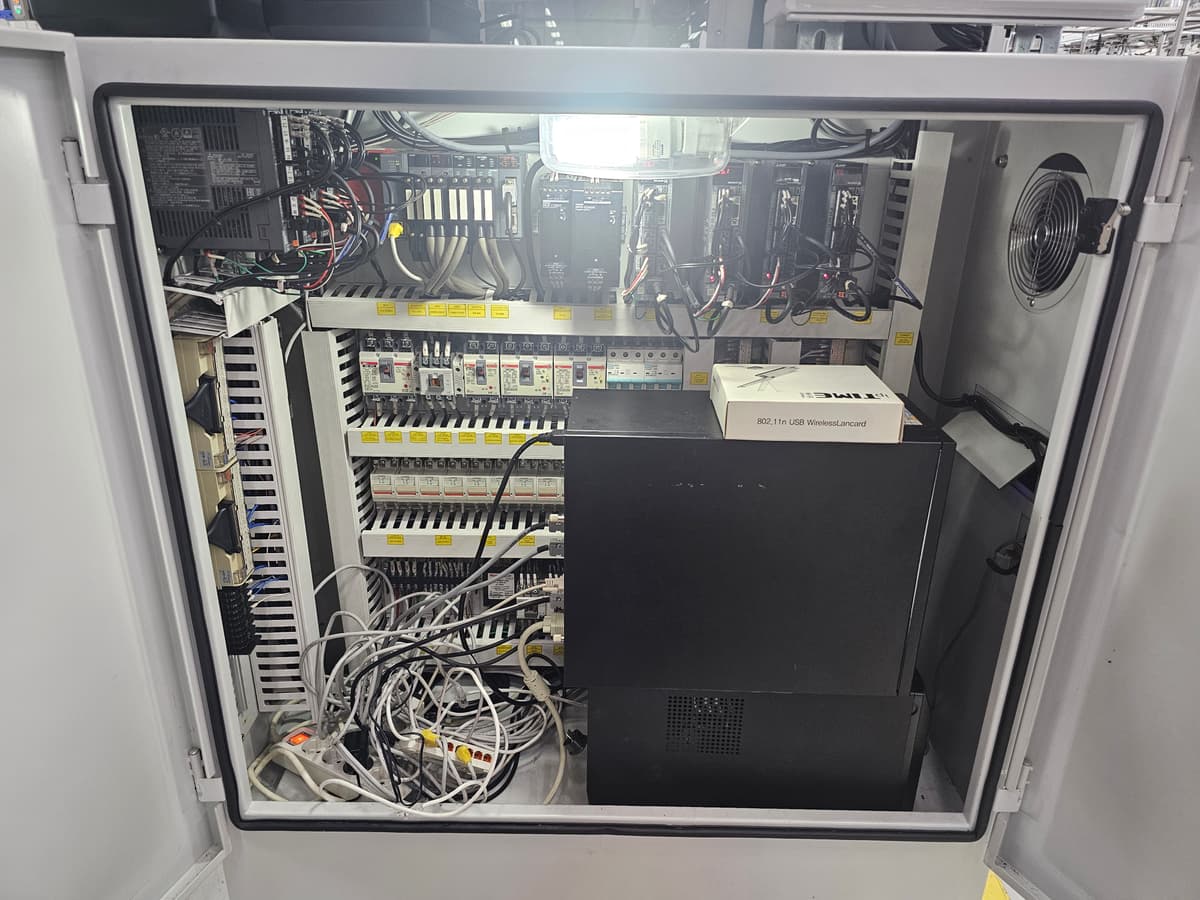
Introduction...
When you go to develop equipment control software and open the specification sheet, a programmer seeing it for the first time will be caught off guard. There is no IP address, no REST API, no JSON. Instead, a table like this appears.
Item | Value |
|---|---|
Port Name | COM4 |
Bits/Second | 19200 |
Data Bits | 8 |
Parity | None |
Stop Bits | 1 |
- Item
Port Name
- Value
COM4
- Item
Bits/Second
- Value
19200
- Item
Data Bits
- Value
8
- Item
Parity
- Value
None
- Item
Stop Bits
- Value
1
The specification sheet is filled with these mysterious values, and
you can just hardcode those values and run it, and the communication works.
When it works, great. The problem is that it often doesn't work. That's when the cold sweat starts. What if I miss the deadline? What if this ruins me? All kinds of thoughts start racing through your head.
So you go out to the site, open up the DIP switch panel, and find that the spec sheet says 19200 but the device is set to 9600, or the sheet says 8-N-1,
but the device is actually running 8-E-1. In more severe cases, the model number listed in the spec sheet differs from the firmware version installed on the site, so the frame structure itself is slightly different. Someone may have changed the settings during a replacement, the spec sheet may be a document from several generations ago, or it could simply be a typo.
What you need in that moment is not the ability to get angry that the spec sheet is wrong, but the ability to change the values one by one and find the right combination yourself. To do that, you need to understand what each value means. Once you understand the meaning, you can look at the symptoms and trace back to where things went wrong. This article is the starting point for that kind of troubleshooting ability. It is the first installment of the Industrial Field Coding series, covering the three lowest layers of serial communication.
Also, the industrial field coding series uses Windows-only code, because in the Korean environment at least, Windows is the standard for equipment control.
Why Serial Communication Still Survives
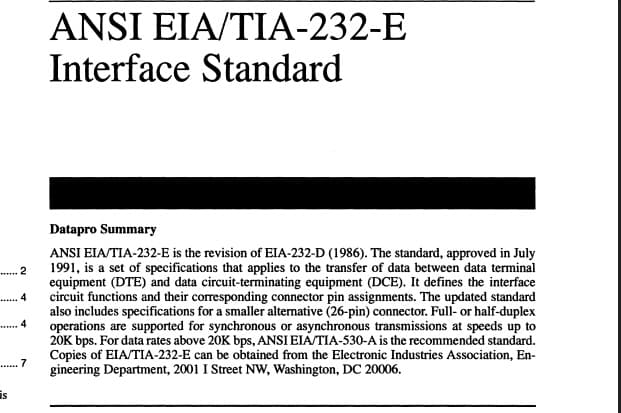
The RS-232 standard was established in 1960. It is a technology more than 60 years old.
Ethernet came in the 1980s and Wi-Fi in the 1990s, and in between, data transmission technology went through dozens of generational shifts. Yet if you walk into a factory today, this 1960s technology is still running in active service.
Why is that?
First, simplicity is reliability. Serial communication has almost no protocol stack. There are a few wires between two devices; one side sends bits and the other receives them. There is no OS kernel, no driver stack, no reassembly logic in between. Having fewer points of failure is a decisive virtue in an environment that must run 24 hours a day for 20 years without stopping.
Second, the weight of legacy assets. If a piece of measurement equipment worth hundreds of millions of won shipped with an RS-232 interface, then the host side must keep speaking RS-232 until that equipment reaches the end of its service life. In a factory, equipment typically lasts between 15 and 30 years. It is not uncommon for a device installed in 1995 to still be running in 2025. And keeping that running is simply the rule of this field.
Third, the freezing of the standard is actually an advantage. Because the standard was locked down long ago, new products still support the old spec as-is. This means a 60-year-old standard can still be used today without worrying about compatibility. From a software perspective, this is almost miraculous.
Fourth, the practical extension: RS-485. RS-232 does have its weaknesses in terms of distance and susceptibility to noise, and it can only connect one device at a time. That is why RS-485 is widely used in factories within the same "serial communication" category. Most recent work involves RS-485, but on the PC side, RS-232 is still used quite frequently as well.
RS-485 uses a differential signaling method that evaluates voltage not as an absolute value but as the difference between two wires, making it resistant to noise, capable of stable communication over distances ranging from tens of meters to hundreds of meters, and able to connect multiple devices on a single line. The important point is that the underlying method of exchanging data is still serial.
In other words, the conventions governing port, baud rate, and data bits remain the same; only the electrical signaling method changes.
Ultimately, serial communication is not going away. If anything, developers entering the field now need to learn this standard. The starting point is ports and baud rate.
The First Convention: Port
A port defines "which channel to communicate through." For those familiar with web development, an analogy would be a TCP port number, though the key difference is that a serial port has a strong physical character.
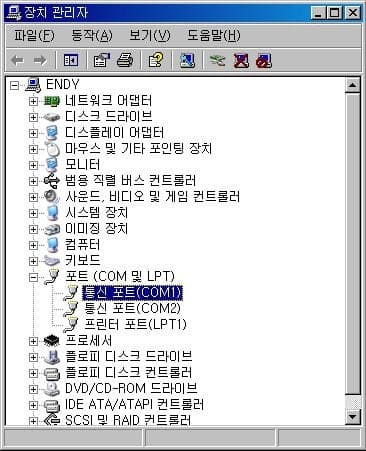
On Windows, serial ports are managed under names such as COM1, COM2, and COM3. Opening Device Manager and looking under the Ports (COM & LPT) section will list all currently recognized ports. Plug in a USB-to-Serial adapter and a new entry appears; unplug it and the entry disappears.
This is where a trap awaits.
A COM port number is nothing more than a logical identifier. You might assume that the 9-pin connector on the back of the PC is COM1, only to discover that the port has been disabled in the motherboard BIOS settings and a USB adapter has taken the COM1 designation instead, or vice versa.
A device manual may say "connect to COM2," but which physical connector that COM2 actually refers to must be verified on-site.
Clicking on each port in Device Manager and viewing its properties will show the DeviceID or Device Instance, from which you can read what kind of port it is.
DeviceID Prefix | Meaning |
|---|---|
| Onboard motherboard UART (typically RS-232) |
| FTDI chip USB adapter |
| Prolific chip USB adapter |
| Another device is occupying the serial port |
- DeviceID Prefix
ACPI\PNP0501- Meaning
Onboard motherboard UART (typically RS-232)
- DeviceID Prefix
FTDIBUS\VID_0403- Meaning
FTDI chip USB adapter
- DeviceID Prefix
USB\VID_067B- Meaning
Prolific chip USB adapter
- DeviceID Prefix
SERENUM\*- Meaning
Another device is occupying the serial port
That last SERENUM\* entry is especially important. Devices such as touchscreen controllers or fingerprint readers can attach to the serial bus and consume a COM number. In the field, about half of all "COM1 won't open" symptoms trace back to this cause.
(To be clear, SERENUM itself does not necessarily mean the port is occupied. It is simply the case in the majority of instances.)
This is also one of the most common mistakes in field setup, and if you don't know what to look for, you can waste hours wondering whether the code is wrong.
The second trap with ports is the port-in-use problem.
A serial port can be opened by only one process at a time. If a previously running app instance did not shut down cleanly and remains as a zombie process, the new instance will encounter an UnauthorizedAccessException: Access to the path 'COM4' is denied error.
When this error appears in the field, you need to clean up the leftover process with taskkill. From the application's perspective, the safe approach is to add guard code at startup that checks whether another instance of the same name is already running. This error occurs particularly often when touchscreen-type devices are connected.
What makes this problem especially significant is that most serial devices effectively allow only a single reader. In other words, it is difficult to design a system where multiple modules each open the port directly and read from it independently.
In such cases, the safer approach is to have a single dedicated read loop that owns the port, loads received data into an internal cache or queue, and lets other modules consume copies of that data. If you do not treat the port as a shared resource, the UI update, logging, and decision logic will easily end up conflicting with each other down the line.
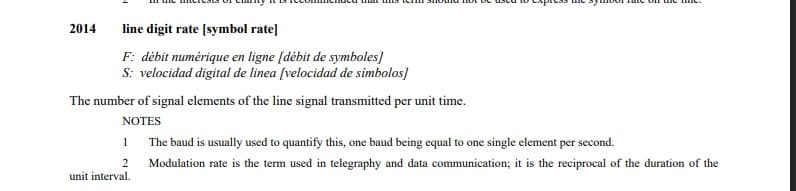
The baud is usually used to quantify this, one baud being equal to one single element per second.
— ITU-T G.701
The Second Agreement: Baud Rate
The Origin of the Unit: Tracing Back to Telegraphy in the 1870s
Baud Rate is a legacy from before serial communication as we know it. The unit name itself comes from Émile Baudot, a 19th-century French telegraph engineer.
Baudot created a 5-bit telegraph code in the 1870s. Before that, Morse code assigned different lengths to each character (E was a single dot, H was four), making it difficult to measure transmission speed objectively. Baudot's code gave every character the same length, which made it possible to express "how many signal states can be changed per second" as a single numeric value. That value later became standardized as the unit baud, named after him.
The official meaning of the term baud rate is not defined in any individual modem specification; rather, it is a concept established in the International Telecommunication Union's (ITU) terminology documents as "the number of signal element (symbol) changes per second." For example, ITU-T G.701 describes symbol rate as the number of signal elements transmitted per unit time and states that baud is the unit for that measure.
RS-232 has a slightly different lineage. RS-232, standardized in 1962 by the Electronic Industries Association (EIA), defined voltage levels, timing, and bit transmission methods, and in practice baud ≈ bit rate is used. Why that is the case is explained below.
In the field, it is used interchangeably with bps
In the UART-based serial communication we deal with, one symbol is almost always one bit. High voltage means 1, Low voltage means 0.
As a result, the number of symbol changes and the bit transmission rate match numerically. 9600 baud is 9600 bps.
This is why the two terms are used interchangeably in practice. Strictly speaking, they are different units, but nearly every piece of industrial equipment we encounter uses NRZ (Non-Return-to-Zero) encoding, where 1 symbol = 1 bit holds true. When a manual says "9600 baud," you can simply read it as "9600 bits per second."
The values most commonly encountered in industrial settings are as follows.
Baud Rate | Example Equipment |
|---|---|
1200 / 2400 | Very old sensors, low-speed power meters |
9600 | Barcode scanners, low-cost RS-485 devices, receipt printers |
19200 | Mid-range PLCs, some LVDT amplifiers |
38400 / 57600 | Mid-range instrumentation |
115200 | High-speed amplifiers, debug consoles, modern equipment |
- Baud Rate
1200 / 2400
- Example Equipment
Very old sensors, low-speed power meters
- Baud Rate
9600
- Example Equipment
Barcode scanners, low-cost RS-485 devices, receipt printers
- Baud Rate
19200
- Example Equipment
Mid-range PLCs, some LVDT amplifiers
- Baud Rate
38400 / 57600
- Example Equipment
Mid-range instrumentation
- Baud Rate
115200
- Example Equipment
High-speed amplifiers, debug consoles, modern equipment
The reason these values became convention is tied to the clock division architecture of early UART chips. The clean values obtainable by dividing a 1.8432 MHz crystal oscillator by integers are 9600, 19200, 38400, 57600, and 115200. This lineage has carried forward to the present day, and modern USB converter chips still prioritize support for the same set of values.
That is why, when you open the DIP switch panel on a piece of field equipment, you almost always find yourself choosing from exactly this set.
Going deeper: when baud rate and bps diverge
Earlier we simplified things by saying "1 symbol = 1 bit," but there is a point where that breaks down: the moment modulation techniques from communications engineering enter the picture.
When a modem sends data over a telephone line, it can carry multiple bits of information in a single signal change. The classic example is QAM (Quadrature Amplitude Modulation). QAM-16 encodes 4 bits per symbol by combining amplitude and phase, QAM-64 encodes 6 bits, and QAM-256 encodes 8 bits.
Viewed from this angle, the relationship becomes clear.
bps = baud × (bits per symbol)For example, the V.34 modem standard operates at a symbol rate of 2400 baud, but packs up to 14 bits into each symbol to achieve 33600 bps. In this case baud = 2400 while bps = 33600, which are completely different numbers.
The same principle runs through modern wired and wireless communications broadly. Wi-Fi's 256-QAM and 1024-QAM, and the high-order QAM used in 5G, are all strategies for "carrying more bits per symbol to achieve higher throughput within the same bandwidth." The generational transitions in cellular networks are ultimately the story of pushing that bits-per-symbol count higher.
Industrial RS-232/485 serial is far removed from that world. It uses a simple two-voltage-level structure to represent one bit, with nothing that qualifies as modulation. So baud = bps holds, and in practice the two terms can be used interchangeably without causing confusion. That said, knowing the precise meaning of each term pays off later: when you read documentation for wireless modems or high-speed serial standards (PCIe, SATA, USB 3.x, and so on), you will immediately understand why the same words are used differently. Those standards use coding schemes such as 8b/10b and 128b/130b, which cause baud and the effective data rate to diverge once again.
To summarize the takeaway: when you see "9600 baud" in a manual, read it as "9600 bits per second." Even so, it is worth keeping in mind that the word originally means symbol rate, and that the two figures diverge the moment modulation enters the equation.
What happens when the baud rate is wrong
While the transmitter sends one byte at 9600, if the receiver samples at 19200 it reads each bit position twice. The result is a meaningless sequence of bytes: you send 0x48 and receive 0xE3. No matter how long you stare at the code, the cause stays invisible, because once the physical-layer timing is off, every layer above it lies to you.
The practical sequence for pinning down a baud rate
First, check the specification sheet. That is the starting point. But as noted earlier, the spec and the actual hardware do not always agree, so the next step is to open the device's DIP switches and verify them in person. The switch combinations are printed as a table on the back of the equipment manual or on a sticker on the side of the unit. When the two sources conflict, the hardware is telling the truth. More importantly, before doing any of this, escalate to the general contractor who set the requirement; failing to do so is how you end up taking the blame for a missed deadline.
Second, if legacy code exists, look at the values hardcoded there. Code that actually worked in the past had to match the field configuration, making it one of the most reliable pieces of evidence available.
Third, if nothing else works, cycle through values by trial. Running through 9600, 19200, 38400, and 115200 in order will hit the right one in most cases. The combination at which the response starts looking like meaningful bytes is the answer. By the time you reach this step, half a day is already gone.
Travel expenses are already baked into the contract price, so each hour spent this way is pure accumulated loss.
The third agreement: data bits, parity, and stop bits
In the notation "19200-8-N-1", 8-N-1 represents these three values. When an actual byte is placed on the wire, additional bits are attached alongside the data itself. These are the extra bits and how they are structured.
LSB → MSB
  ┌──┬──┬──┬──┬──┬──┬──┬──┬──┬──┬──────┐
  │S │d0│d1│d2│d3│d4│d5│d6│d7│P │ Stop │
  └──┴──┴──┴──┴──┴──┴──┴──┴──┴──┴──────┘
   Start   8 Data Bits        Parity   Stop

  S    = Start bit (always 1 bit)
  d0~7 = Data bits (usually 8, sometimes 7)
  P    = Parity bit (none, even, or odd)
  Stop = Stop bit (1 or 2 bits)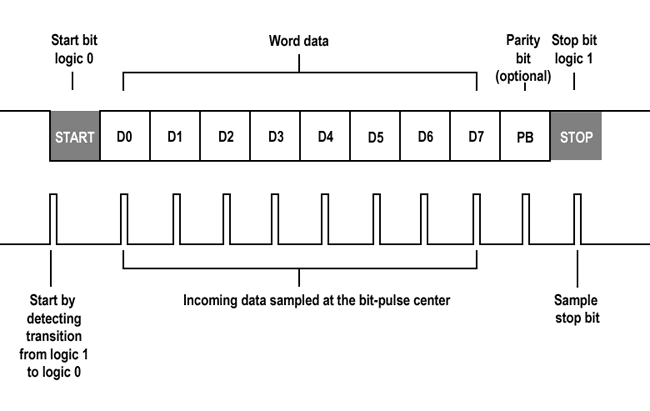
Start bit logic 0 | Word data | Parity bit (optional) | Stop bit logic 1
START | D0 | D1 | D2 | D3 | D4 | D5 | D6 | D7 | PB | STOP
Start by detecting transition from logic 1 to logic 0 | Incoming data sampled at the bit-pulse center | Sample stop bit
It is worth pausing on the start bit (S) at the very front of the frame diagram. When no data is being transmitted, the serial line idles HIGH (1). When the transmitter begins sending data, the very first thing it puts out is a LOW (0) held for exactly one bit period; this is the start bit. The moment the receiver detects that falling edge, it decides "from this point on, I will sample bits in step with the baud rate." The reason two devices that share no separate clock line can still communicate in sync is precisely this start bit.
Data bits are the number of payload bits carried in one byte. 8 is overwhelmingly common. 7 appears only on very old ASCII-only equipment. Almost every modern device uses 8. You will occasionally hear senior engineers mention 7, but it belongs to what you might call true fossil hardware.
Parity bits serve error detection. There are three options: None, Even, and Odd. With Even parity, the transmitter sets the parity bit so that the total count of 1s among the data bits plus the parity bit is an even number. The receiver checks whether the count of 1s in the received byte is even, and flags an error if it is not.
In industrial settings, None is the default, and the reason lies in the structural limitations of parity. Take Even parity as an example: 0b01001101 has four 1s, so the parity bit is set to 0. The receiver only checks whether the total count of 1s across the nine received bits is even. A single flipped bit is caught, but if two bits flip simultaneously the count becomes even again and the error passes through undetected. Parity can only detect errors; it cannot correct them. CRC-16 and CRC-32, by contrast, are based on polynomial division and cover a far wider range of error patterns, including burst errors. When the upper-layer protocol already includes a CRC, parity contributes essentially nothing.
Stop bits signal the end of one byte. 1 is the default; some older, low-speed devices use 2 to give the receiver extra processing time between frames. For most modern equipment, 1 is sufficient.
The way to read all three values at once is to interpret a notation like 8-N-1 directly: the leading number is the data bits, the middle character is the parity (N/E/O), and the trailing number is the stop bits. Once you learn this, every manual you pick up will have the same information in the same place.
Based on the specification, a sample code would look like the following.
// Specification: COM4, 19200-8-N-1
var port = new SerialPort(
    portName : "COM4",
    baudRate : 19200,
    parity   : Parity.None,   // N
    dataBits : 8,             // 8
    stopBits : StopBits.One   // 1
);
When the three values are mismatched, the symptoms that appear are different.
If the data bits are wrong: connecting an 8-bit configuration to a 7-bit device causes the most significant bit of every byte to be handled differently, shifting received values by 128. For example, you send 0x41 ('A') but it reads back as 0xC1.
If the parity is wrong: if the device sends with Even parity but you receive with None, the parity bit gets absorbed into the data bits and 9-bit garbage comes in. SerialPort can report this situation via the RXParity flag in the SerialError event.
If the stop bits are wrong: if the device outputs 2 stop bits but you receive expecting 1, the next start bit is mistaken for a stop bit. A framing error occurs and the FrameError flag is raised.
In field environments that use None for parity, parity errors will never occur in the first place, but framing errors and overruns can still happen. Attaching diagnostic code cuts the time spent tracking down communication faults by half.
port.ErrorReceived += (_, e) =>
{
    // When this log appears in the field, suspect the cable, baud rate, and stop bits first
    File.AppendAllText("serial_error.log",
        $"[{DateTime.Now:HH:mm:ss.fff}] SerialError={e.EventType}\n");
};

port.Open();
ErrorReceived fires as an event without consuming a thread, so attaching it to production code adds no overhead. It leaves clues in the field log without affecting the actual communication flow.
Incidentally, there is a reason None is the default in industrial settings. The parity bit can only detect errors, not correct them. A single-bit error is caught, but two simultaneous bit errors pass right through. As a result, higher-level protocols are designed to include their own error verification.
For PLC communication, the MC Protocol frame itself carries a checksum. For barcode scanners, CR/LF terminators and response format parsing filter out errors. There is no room for a parity bit to contribute.
That is why field code often has no code subscribing to the SerialError event or the RXParity flag. As long as Parity.None is in use, parity errors simply do not occur, so there is nothing to catch. Framing errors and overruns can still happen, but in practice it is more realistic to suspect a baud rate mismatch or a bad cable connection first. That said, being able to say this confidently does tend to make the person responsible look more favorably on you when it comes time to sign the contract.
// A typical look at field code: no `ErrorReceived` handling
var port = new SerialPort("COM4", 19200, Parity.None, 8, StopBits.One);
port.Open();
// Error detection is handled by the higher-level protocol (checksum, response format parsing)
When you encounter a device that uses Even or Odd parity, that is the time to attach ErrorReceived. Until then, you can do without it.
The 3 settings in C# code
The minimal code to open an actual port with all three values correctly set looks like this in C#.
using System.IO.Ports;

var port = new SerialPort
{
    PortName  = "COM4",
    BaudRate  = 19200,
    DataBits  = 8,
    Parity    = Parity.None,
    StopBits  = StopBits.One,
    Handshake = Handshake.None,
    ReadTimeout  = 500,
    WriteTimeout = 500,
};

port.Open();
port.Write(new byte[] { 0x05 }, 0, 1);
port.Close();
Handshake.None and two timeout values are also included. Handshake is flow control. It was originally used by devices like old printers to signal "I'm busy, please wait" via the RTS/CTS pins, but most modern industrial equipment does not use it. Leaving it as None is safe.
The timeout has a similar meaning to network programming: it prevents the application from waiting forever if the physical layer goes down. Around 500 ms is a reasonable value. Too short and you will not give the device enough time to prepare a response; too long and fault detection is delayed.
If this code passes Open() without throwing an exception, the physical layer hurdle is cleared. Whether the device actually sends back a response is a separate matter, but at least you have confirmed that the port and the three parameters match.
Symptoms you see when field settings are mismatched
Organizing the most common field symptoms into a table speeds up diagnosis.
Symptom | Most likely cause |
|---|---|
| The port name itself is wrong, or the USB adapter has been unplugged and the COM number has disappeared |
| Another process is already holding the port. Check for zombie applications or touchscreen drivers. |
Bytes are arriving but they are meaningless | Baud rate or data bit mismatch |
One or two bytes are corrupted intermittently | Parity setting difference, or a physical problem with the cable itself |
The bytes you sent come straight back (echo) | The port and baud rate match but the physical layer type is wrong (RS-232 vs. RS-485) |
The port opens but there is no response | The wiring is correct but the device's address or protocol is different |
- Symptom
FileNotFoundException/Could not find file 'COM4'- Most likely cause
The port name itself is wrong, or the USB adapter has been unplugged and the COM number has disappeared
- Symptom
UnauthorizedAccessException- Most likely cause
Another process is already holding the port. Check for zombie applications or touchscreen drivers.
- Symptom
Bytes are arriving but they are meaningless
- Most likely cause
Baud rate or data bit mismatch
- Symptom
One or two bytes are corrupted intermittently
- Most likely cause
Parity setting difference, or a physical problem with the cable itself
- Symptom
The bytes you sent come straight back (echo)
- Most likely cause
The port and baud rate match but the physical layer type is wrong (RS-232 vs. RS-485)
- Symptom
The port opens but there is no response
- Most likely cause
The wiring is correct but the device's address or protocol is different
The last symptom, "bytes coming back as echo," is the central topic of Part 2 in this series. If the port and baud rate are both correct yet the device gives no reply and the bytes you sent come straight back, the cause is very likely a mismatch in physical layer type between RS-232 and RS-485. That story is covered in the next installment.
Summary
Here is a recap of the three agreements that underpin serial communication.
First, the Port determines which channel you communicate through. On Windows it is managed as a COM number, and you can verify which physical connector it corresponds to by checking the DeviceID in Device Manager. Be prepared in advance for port contention issues and zombie process problems.
Second, the Baud Rate determines how many bits are exchanged per second. 9600, 19200, and 115200 are the conventional values, and their lineage comes from the clock-divider architecture of early UART chips. If the baud rate is wrong, bytes arrive but carry no meaningful information.
Third, Data Bits, Parity, and Stop Bits define the frame structure of a single byte. The default in industrial environments is 8-N-1, and that single notation lets you read all three values at once.
When these three settings match, you have cleared half of the physical layer. The other half is the type of electrical signal, and that is the subject of the next installment. If you plug in with the same COM port and the same baud rate yet only get an echo back, that is where the culprit lies.